
Gaming Mode - Game Booster PRO
ZipoAppsPersonalization
4.44.56K Reviews
- Version
- 2.0.5
- Installs
- 10.00M
- Age Rating
- Everyone
Screenshots
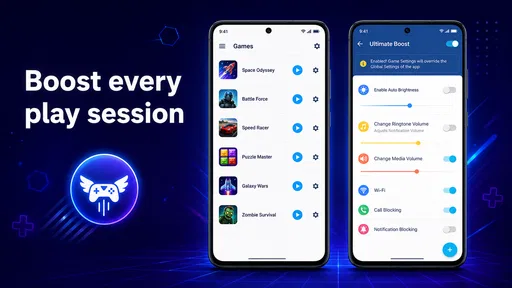
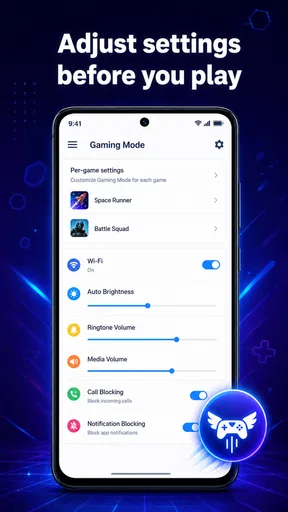
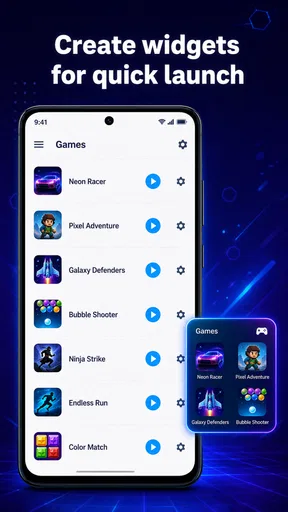
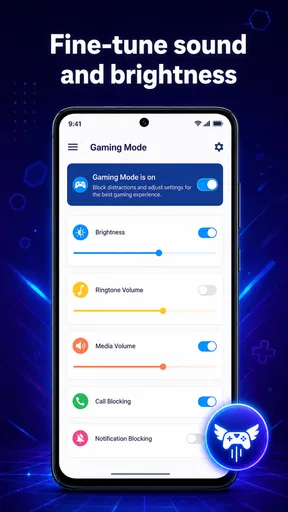
Our Review of Gaming Mode - Game Booster PRO
 Analysis by Appyee
Network conditions can shape a mobile game more than a graphics setting does. A brief connection dip may interrupt a match even when the phone itself is behaving well, and a call or alert can pull attention away at exactly the wrong moment. That is why I look at Gaming Mode - Game Booster PRO less as a cure for every gaming problem and more as a way to organize the phone around a session. Its appeal is practical: fewer interruptions, game-specific preferences, and a quick route to some common device controls.
When a connection is part of the match
For an online match, it helps to separate network trouble from phone performance. A lag spike caused by an unstable connection will not necessarily disappear because a booster closes background apps or silences notifications. I would use the app to reduce avoidable distractions and competing activity, but I would still check the strength and consistency of the connection if opponents are teleporting or actions arrive late. Fewer interruptions are not the same thing as a stronger network.
That distinction matters when deciding whether a smoother session is actually a result of the app. If a game feels better after I clear background apps, the phone may have more room to focus on it; if the connection is weak, the match can remain choppy. I find it useful to test a game under similar conditions before and after changing a profile rather than attributing every improvement to one tap. That keeps expectations sensible and helps identify whether the real problem is device load, notifications, or connectivity.
Useful in short sessions and shared spaces
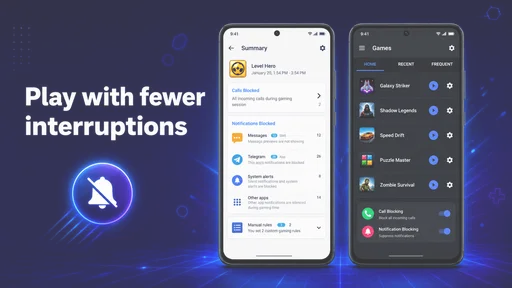
The app makes the most sense when I play in places where interruptions are likely: a lunch break, a waiting room, or a quiet room where a ringtone would bother other people. Auto-rejecting calls and blocking notifications can make a short session feel more focused, while profiles let me avoid rebuilding the same preferences every time I switch games. If I am playing a puzzle game at home, I may want a lighter setup than I would for a competitive match.
There is a trade-off, though. Blocking alerts can hide something I actually need to see, and rejecting a call is more consequential than muting a harmless notification. Before starting a session, I would decide whether calls should be rejected at all, rather than turning on every interruption control by habit. Keeping alarms audible, as the original reviewer did, is a sensible example of making the gaming setup fit real life instead of treating every alert as disposable.
Recovering when the session goes wrong
If a game starts stuttering, I would treat the one-tap background cleanup as a first troubleshooting step, not a guaranteed repair. It may help when other apps are using resources, but it cannot fix every cause of slowdown. I would close the game, check whether the phone is already busy, and try the game profile again before changing several settings at once. Making one adjustment at a time gives a clearer idea of what helped.
For a connection drop, the practical recovery is different: reconnect within the game or check the network before assuming the booster can restore a match. The app’s described role is managing gaming-related phone settings, not repairing a router or guaranteeing uninterrupted online play. This is a useful boundary to understand, especially for players who mostly play competitive titles where a network problem can matter more than background activity.
Choosing a sensible setup for mobile use
Brightness, ringtone volume, and notification handling are easy to overlook until a session begins. I would make a profile for the games I play often, then keep its settings conservative: dim the screen only as far as remains comfortable, preserve alarms, and silence only the alerts I can safely miss. A profile for an intense action game can be stricter, while one for a casual game can leave more of the phone available for normal use.
Battery saving is another setting to approach with a little judgment. It can be helpful when I am away from a charger, but any battery-focused adjustment is a trade-off rather than free extra playtime with no compromise. If a game depends on a bright display or responsive performance, I would test the setting during a low-stakes session first. That is more useful than discovering midway through a match that the chosen balance does not suit the game.
Compared with using Android’s built-in controls one by one, a gaming-focused app can make repeated changes easier to organize. The advantage here is the combination of profiles and interruption management in one place. The alternative—manually changing sound, notifications, brightness, and background activity—may be preferable if you only play occasionally or want complete control over each setting. I would not add another utility just for a single feature that the phone already handles well.
Gaming Mode - Game Booster PRO is a free personalization app from ZipoApps, and it has a 4.4 average from around 414,000 ratings, with more than 10 million installs. It is rated for Everyone, so its audience is broad, but that does not mean every control is right for every player. In-app purchases range from $0.99 to $149.99 per item, so I would check the purchase details in the app before choosing anything paid. The current version is 2.0.5, and it requires Android 8.0 or later.
I would recommend trying it if you regularly switch between games and want profiles to handle recurring preferences, or if incoming calls and alerts are a genuine annoyance during play. I would skip it if you expect it to improve a weak mobile signal, repair online-game servers, or create a large performance gain on a phone that already runs your games smoothly. A built-in gaming mode may be enough if your device already offers the interruption and performance controls you need.
My main advice is to start with one game and a modest profile. Keep alarms available, choose carefully whether calls should be rejected, and test any battery or brightness changes before relying on them in a long session. That approach makes it easier to judge whether the app is solving your particular annoyance instead of simply adding another layer of settings.
Ever been mid-battle in your favorite game, only to have your phone lag and your character meet an untimely demise? Enter Gaming Mode - Game Booster PRO, the app that's here to save your gaming day. As someone who loves to dive deep into gaming marathons, I was curious to see how this app could enhance my experience. Here's a deep dive into what I discovered after giving it a whirl.
The Setup Experience
First things first, getting started with Gaming Mode - Game Booster PRO was a breeze. The app is pretty light, so it didn’t take up much space on my device. Installation was quick, and before I knew it, I was ready to explore its features. The user interface is straightforward, which I appreciated; there's nothing worse than getting bogged down by complicated settings when all you want to do is game.
Features That Make a Difference
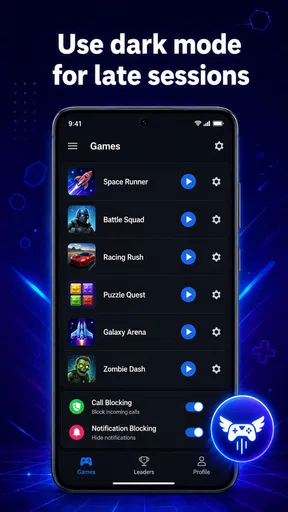
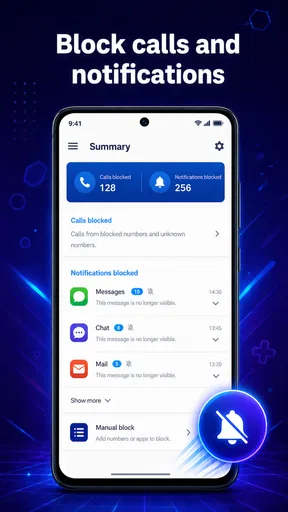
The app offers a plethora of features designed specifically for gamers. One of my favorites is the ability to auto-reject incoming calls while gaming. Seriously, nothing breaks your concentration like a phone call from a telemarketer when you're about to score a game-winning point. The app also blocks notifications, ensuring you’re not distracted by random alerts popping up on your screen.
Another neat feature is the ability to clear background apps with a single tap. This optimizes your phone’s performance by freeing up RAM, which is crucial for running high-performance games. I noticed a significant improvement in my phone’s speed, with noticeably reduced lag.
Customizable Settings
What really impressed me was how customizable the app is. You can tailor it to your specific needs, adjusting everything from brightness levels to ringtone volumes when you’re gaming. I set mine to mute everything except alarms, because hey, I still need to wake up in the morning!
Furthermore, the app allows you to create profiles for different games. This means you can have one setup for an intense FPS and another for a laid-back puzzle game. Switching between these profiles is seamless, which makes it super convenient if you’re someone who hops between games.
Performance Boost
Alright, let’s get to the meat and potatoes: performance. After activating the app, I launched a graphics-heavy game that usually slows my phone to a crawl. To my surprise, the game ran much smoother. The frame rate was steady, and I didn’t experience any of the annoying stutters I was used to. It felt like my phone had just gotten a fresh turbo boost.
The app’s ability to manage system resources efficiently is a game-changer, quite literally. It’s like having a personal assistant ensuring your phone is always performing at its best when you need it the most. Plus, the battery saver feature is a godsend for those long gaming sessions. It tweaks settings to extend battery life, so you can keep playing without constantly reaching for the charger.
User Community and Support
The community around this gaming app is pretty active. There are forums where you can share tips and tricks or get assistance if you run into any issues. The developers seem responsive and frequently update the app, which is reassuring. It’s always nice to know that support is there if you need it.
Moreover, the app’s FAQ section is quite comprehensive, covering most of the queries I had. But honestly, the app is so intuitive, you might not even need to look there in the first place.
Final Thoughts
So, is Gaming Mode - Game Booster PRO worth it? In my opinion, absolutely. It’s a small investment that can significantly enhance your gaming experience. The app delivers on its promise to boost performance and eliminate distractions, making it a must-have for any serious gamer. Whether you’re playing casually or diving into competitive play, this app has got your back.
In the world of mobile gaming, where every second counts, having an app like this can be a real game-changer. So why not give it a try? You might just find it’s the missing piece in your gaming arsenal.
Verdict
Strengths of Gaming Mode - Game Booster PRO
- Enhances gaming performance seamlessly.
- Customizable settings for various games.
- Blocks notifications during gameplay.
- Reduces lag and overheating issues.
- User-friendly interface with easy navigation.
Limitations of Gaming Mode - Game Booster PRO
- May drain battery faster on older phones.
- Limited features in the free version.
- Some features require in-app purchases.
- Occasional compatibility issues with updates.
- Initial setup may be confusing for novices.
Other Releases by ZipoApps
View All
Screen Mirroring - Cast to TV
Video Players & Editors4.3

Cut and Paste Photos
Photography4.6

Edge Lighting - Borderlight
Personalization4.8

Widgets OS 18 - Color Widgets
Personalization4.7
Similar Picks in This Category
View All
Microsoft SwiftKey AI Keyboard
SwiftKey4.3

Wallpapers
Google LLC4.1

Zedge™ Wallpapers & Ringtones
Zedge4.7

Yandex Browser with Alice AI
Direct Cursus Computer Systems Trading LLC4.3

Ringtone Maker:create ringtone
Big Bang Inc.4.7

Fonts Keyboard
Fonts Keyboard3.9
Frequently Asked Questions
What is Gaming Mode - Game Booster PRO, and how does it enhance my gaming experience?
Gaming Mode - Game Booster PRO is an application designed to optimize your device's performance specifically for gaming. By managing background apps and processes, it allocates maximum resources to your game, reducing lag and improving responsiveness. This ensures a smoother gaming experience by minimizing interruptions and enhancing overall gameplay efficiency.
Does Gaming Mode - Game Booster PRO affect battery life on my device?
While Gaming Mode - Game Booster PRO is designed to optimize performance, intensive gaming itself can consume more battery. The app manages resources efficiently, potentially reducing unnecessary power drain. However, users should expect some impact on battery life during extended gaming sessions, as the app prioritizes performance over power conservation.
Is Gaming Mode - Game Booster PRO compatible with all games and devices?
Gaming Mode - Game Booster PRO is compatible with a wide range of games and Android devices. However, performance enhancements may vary depending on your device's specifications and the game's requirements. It's recommended to check the app's compatibility with your specific device model and the games you frequently play for optimal results.
What customization options does Gaming Mode - Game Booster PRO offer?
The app offers various customization options, allowing users to tailor settings to their preferences. This includes adjusting notifications, blocking calls during gameplay, and managing auto-brightness. Users can also create personalized gaming profiles for different games, ensuring consistent optimization each time they play.
Is there a cost associated with downloading and using Gaming Mode - Game Booster PRO?
Gaming Mode - Game Booster PRO is typically available for purchase or subscription, offering advanced features beyond the free version. The cost provides access to premium options like ad-free usage, enhanced customization, and priority support. Users should review the app store for the latest pricing and subscription details.
